1
Step 1
Jamf Foundations
2
Step 2
Your Selections
3
Step 3
Jamf Platform Deployment
4
Step 4
Jamf Foundations Deployed
Step 1 of 4

Jamf Foundations

Setup a management baseline for your Mac and Mobile fleet in minutes

This wizard will get your Jamf for Mac/Jamf for Mobile environment up and running in minutes. Answer a few questions about your needs and we'll take care of the rest.

Expected outcomes:
  • Mac & Mobile management: Smart groups, Inventory settings, User Self Service
  • FileVault 2: Encryption enforcement with recovery key escrow (Mac)
  • macOS Software Updates
  • Content filtering, network threat defense
  • Advanced Mac endpoint protection
You call the shots:
  • Compliance benchmarks (Mac): CIS and other security frameworks
  • Apps for your fleet: Mac & Mobile Apps
Before you begin, please prepare the following:

Jamf Platform API

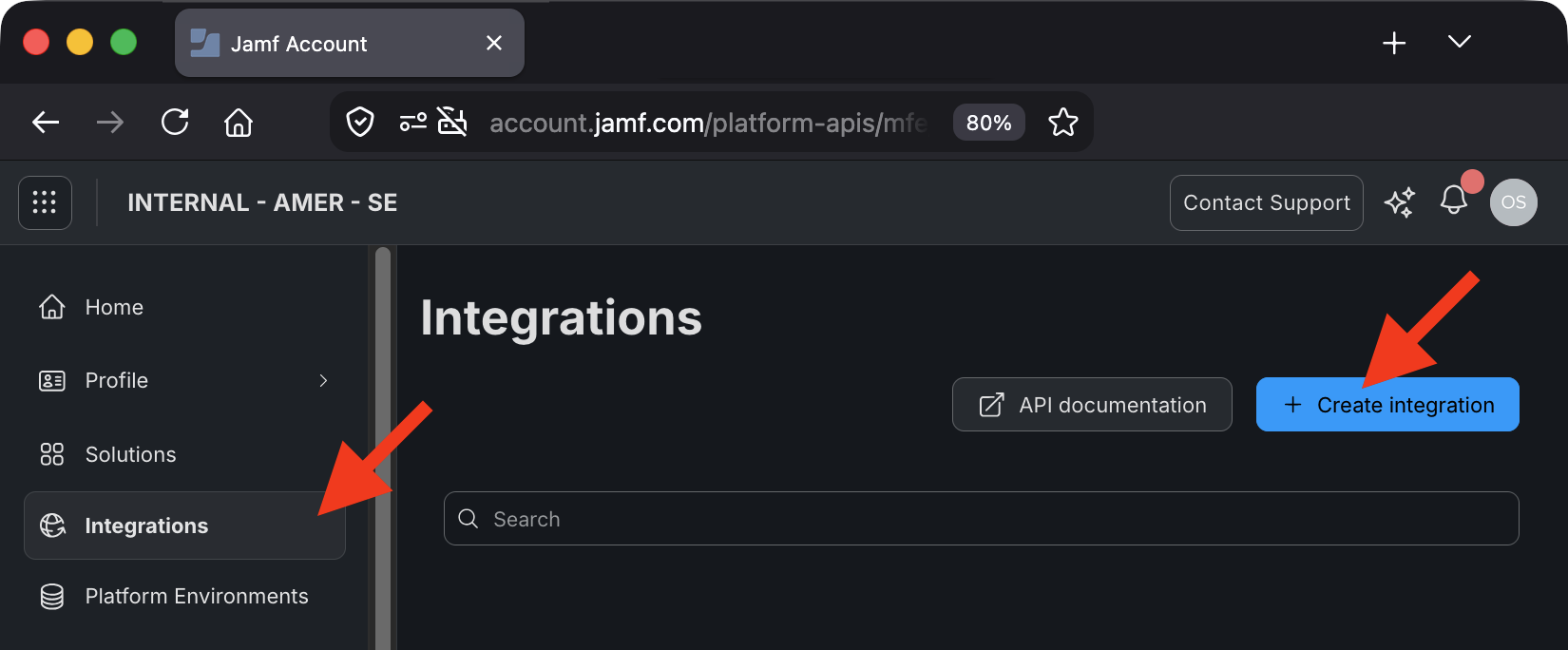
OAuth2 Client ID from your account.jamf.com Integration
OAuth2 Client Secret from your account.jamf.com Integration
Platform Environment ID from your integration's Level details tab in account.jamf.com

Apple Service Tokens

Sign into your Apple Business or Apple School portal and complete the following steps:

  1. From Settings > Organizational Units, add a new organizational unit. The name should match your Jamf Pro instance address (e.g. yourcompany.jamfcloud.com)
  2. From Apps and Books, purchase Jamf Self Service (iOS), then assign it to the new organizational unit
  3. From Device Management Services, add a new Service using the Public Key supplied earlier and download the token
  4. From Preferences, under Payments & Billing, download the Content Token for the new organizational unit

Apple Push Setup

APNs lets Jamf Pro notify your Apple devices when they need to check in for new and updated management profiles, push commands, and compliance checks. This is a one-time setup. You'll need an Apple ID associated with your organization.

  1. Download the Jamf CSR: In Jamf Pro, go to Settings → Global → Push certificates, click the MDM Push Notification Certificate, then Renew (or New if none exists yet). Choose Download signed CSR from Jamf.
  2. Go to Apple's Push Portal: Open identity.apple.com and sign in with an organizational Apple ID.
  3. Upload the CSR: Click Create a Certificate, accept terms, upload the CSR from step 1, then download the resulting `.pem` certificate from Apple.
  4. Upload to Jamf Pro: Back in Jamf Pro on the same screen, upload the `.pem` certificate and save. Apple Push is now configured.

You are invited to access and use a pre-release and in-progress beta version of Jamf's Onboarder tool. Onboarder is a utility designed to streamline setting up Jamf environments.

You will only use Onboarder in accordance with the Onboarder Guide training, which you must complete before using Onboarder, and any other guidelines that we may provide to you. Onboarder must be used with you and your customer present.

By using Onboarder, you agree to provide Jamf suggestions, recommendations, or feedback about Onboarder ("Feedback"). We may use the Feedback without restriction.

Jamf provides Onboarder on an "as-is" and "as available" basis without any warranties of any kind. Onboarder may be incomplete or inoperable. We have no obligation to provide technical support for Onboarder and make no uptime commitments. We will have no indemnity or defense obligations to you for any claims arising from your use of Onboarder. To the maximum extent permitted by law, in no event will our aggregate liability related to your use of Onboarder exceed US $100.